





Residential Proxy HOT
HOT
HOTHumanized crawling, no IP shielding.Enjoy 90M real IPs from 220+ locations
 2025-04-21 17:50:52 updated
 11350 views
 5 min read
Step 1: Obtain the proxy in the Get Proxy of Dashboard and export it (taking Residential Proxies as an example)
Step 2: Open the Incogniton browser, log in your account, and click Browser Profile Creation.
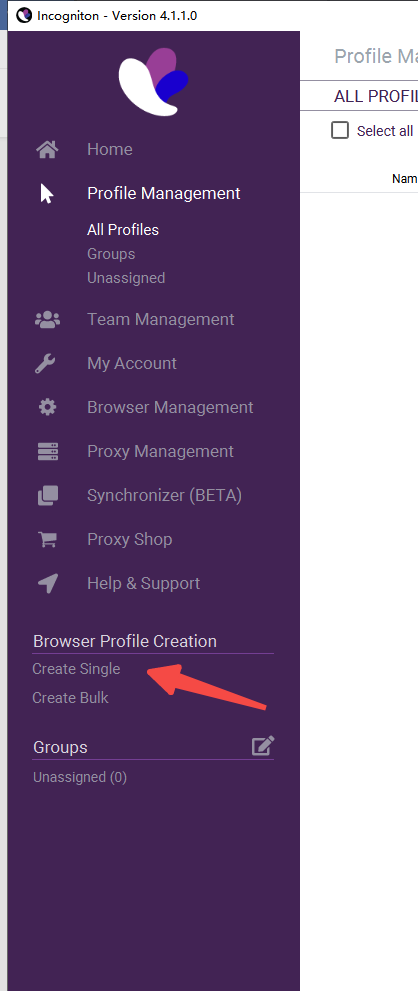
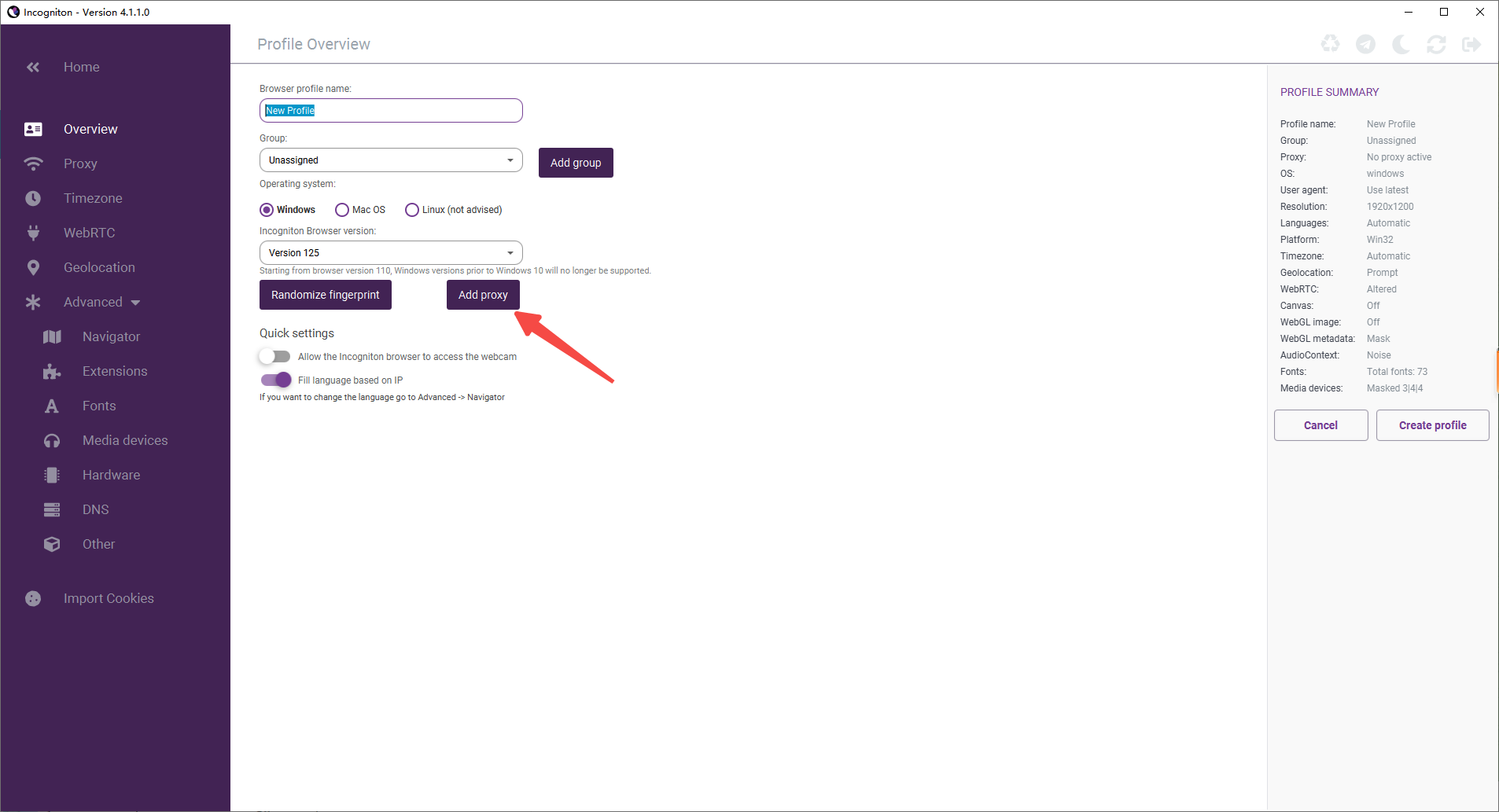
Step 3:Click Add Proxy to create a new profile.
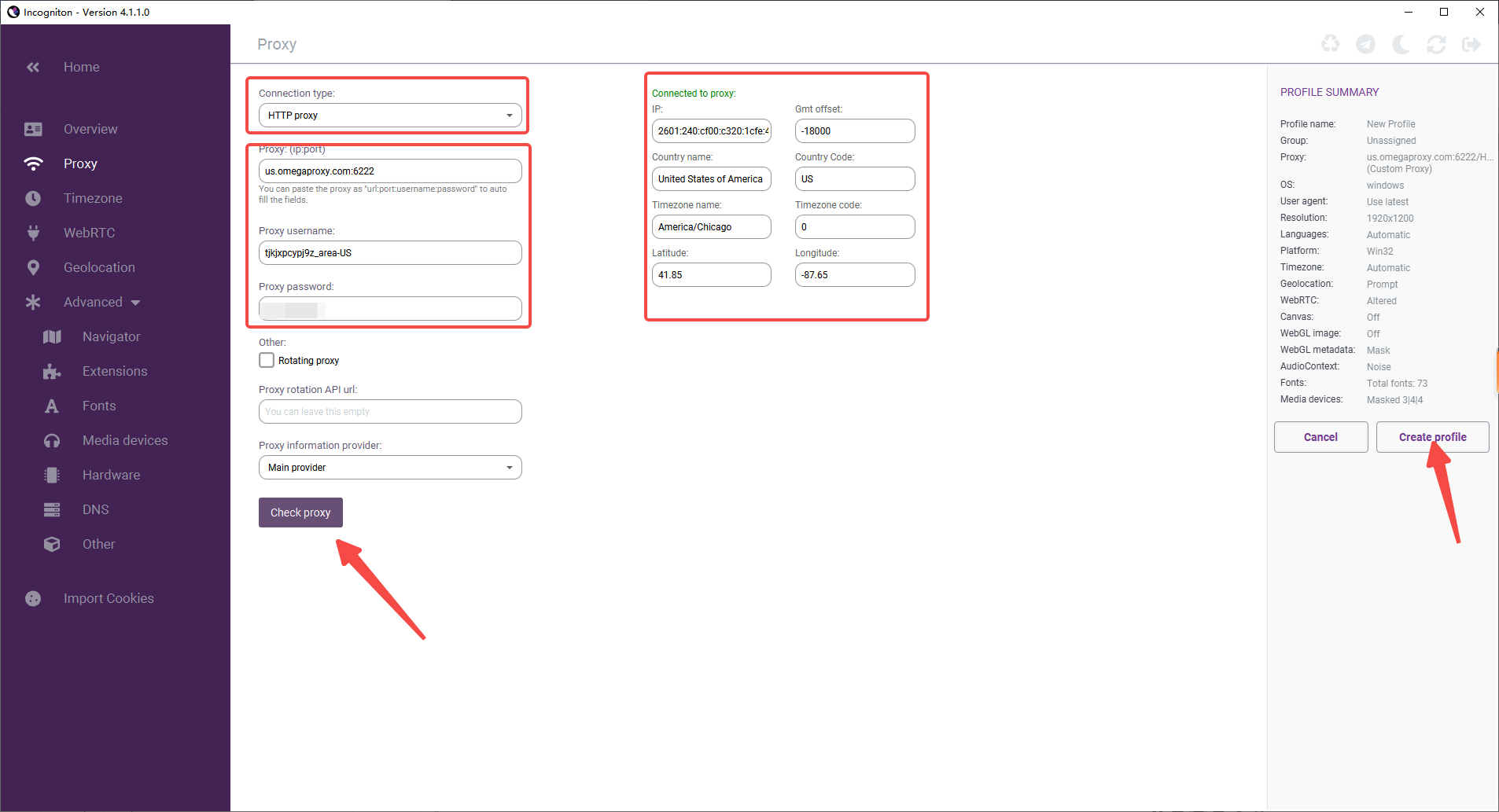
Step 4: You can select HTTP or Socks5 as the Connection type. Enter the obtained IP proxy information and click Check Proxy . After the check is successful, click Create profile to complete the creation.
Step 1: Obtain the proxy in the Get Proxy of Dashboard and export it (taking Residential Proxies as an example)Step 2: Open Adspower, create a new browser, select HTTP and Socks5 as the Proxy type, and select ip-api as the IP checker. Enter the obtai
Step 1: Obtain the proxy in the Get Proxy of Dashboard and export it (taking Residential Proxies as an example) Step 2: Open Bit Browser, click the Browser Profiles, add one window, select ip-api as the IP Lookup Channel, and select HTTP and Socks5 as
Step 1: Obtain the proxy in the Get Proxy of Dashboard and export it (taking Residential Proxies as an example) Step 2: Open the Morelogin browser and log i your account. Click New Profile. Step 3: Find the proxy settings in the Advanced create: select
Step 1: Obtain the proxy in the Get Proxy of Dashboard and export it (taking Residential Proxies as an example) Step 2: Open the Incogniton browser, log in your account, and click CREATE PROFILE.
Step 1: Abstract the proxies in the dashboard and export it. Step 2: Open DICloak, select Profiles, and click Create Profile: Step 3: Select the Proxy settings on the left, click the proxy type (you can select HTTP or Socks5), enter the proxy informa
Collect Web Data Easily with OmegaProxy Residential Proxies

One of the best proxies. More than 90 million IPs are active worldwide. Select an IP address from any country or city.





